Feedback
Send a report about a problem, an unexpected result, a feature request, or a payment-related concern.
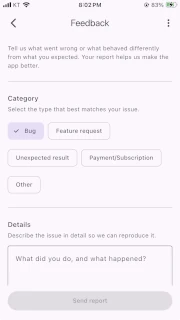
How to open it
Section titled “How to open it”Select Feedback in the vertical menu, or select Result feedback in Final video.

Write and attach
Section titled “Write and attach”Category
Section titled “Category”Choose the category that matches your feedback.
Attach diagnostic information
Section titled “Attach diagnostic information”- This section only appears when you open the feedback screen by selecting
Send feedbackon the final video screen. - Use it when you want to share more detailed project information with the developer to help resolve the issue.
- Turning on the switch sends the project’s images, corner information, Ken Burns settings, and general and Pro feature settings to the server.
- With this information, the developer can reproduce the project and review the issue you reported in more detail.
Description
Section titled “Description”A description is required and can contain up to 500 characters.
Attachments
Section titled “Attachments”Each attachment must be an image, 3MB or smaller, and all attachments together must be 8MB or smaller. You can upload up to 3 images.
Only the first 10 seconds of an attached video are sent, and its size is reduced to 640p.
When Attach diagnostic information is selected, the app can include its version, OS version, device details, and recent error logs.
Feedback started from a final video can automatically include result information such as photo count, resolution, FPS, Ken Burns, final frame hold, and watermark status.
Submission states and leaving
Section titled “Submission states and leaving”The app displays preparing, attachment-upload, and submission stages in order. On success, it shows a receipt ID. On failure, you can retry using the error code. Leaving while writing shows a confirmation because unsent content can be lost.
Your recent feedback list
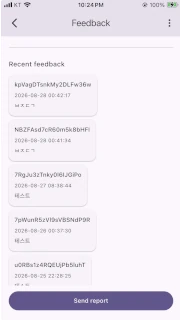
Section titled “Your recent feedback list”You can check the ID, submission date, and description of feedback you recently sent. Share this information with the developer by email for more detailed help.
Developer contact
Section titled “Developer contact”If you need further help, you can contact the developer by email.
Next step
Section titled “Next step”After submission, you return to the previous screen. For payments or Pro features, also see Subscription.