Video output
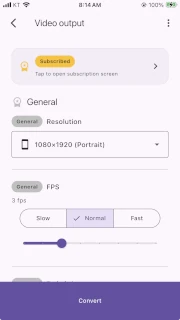
Choose the resolution, playback speed, and other settings, preview the result, and start the final conversion.
How to open it
Section titled “How to open it”Tap the Video output button at the bottom of the Image correction screen.

General features
Section titled “General features”General features are available to both subscribers and non-subscribers.
Resolution
Section titled “Resolution”Choose from 1080×1920 (Vertical reel), 1920×1080 (Landscape video), or 1280×720 (Lightweight).
FPS can be selected from 0.5 to 60.
Fade in/out
Section titled “Fade in/out”- Fade in/out softly transitions between images.
- This can only be enabled when the display time of each image exceeds 200 ms.
Fade in/out disabled
Section titled “Fade in/out disabled”
Fade in/out enabled
Section titled “Fade in/out enabled”
Pro features
Section titled “Pro features”Pro features are available to subscribers only.
Remove watermark
Section titled “Remove watermark”- Videos created by non-subscribers include a small watermark in the lower-right corner.
- Subscribing lets you remove this watermark.

Ken Burns effect
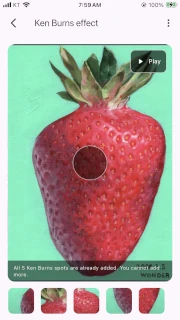
Section titled “Ken Burns effect”You can add the animation spots configured in Ken Burns to the later part of the video.

Final frame hold
Section titled “Final frame hold”Final frame holdkeeps the last completed image at the end of the video for a selected duration.- This gives viewers more time to appreciate the artwork within the video.
- You can choose 1, 2, or 3 seconds; the default is 2 seconds.
Preview
Section titled “Preview”- Tap
Generate previewto check the result first. A progress indicator is shown while it is preparing. - Non-subscribers can also preview results with Pro features applied.
- Changing the settings for general or Pro features resets the preview.
Next step
Section titled “Next step”Tap Convert while not subscribed to show a dialog that explains the non-subscriber policy. You can either go to the subscription screen or continue the video conversion.
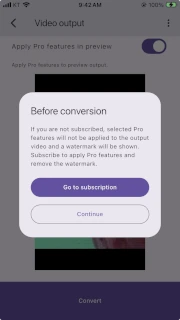
If you continue with the video conversion, you can view the conversion status and result in Final video.