Ken Burns
Add motion by choosing a zoomed and moved area in the photo, then apply it in the final video.
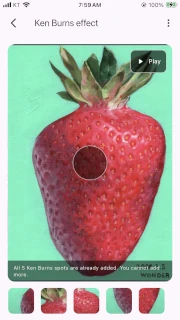
How to open it
Section titled “How to open it”- Go to the last image in Image correction.
- Tap the “Pro feature: Apply Ken Burns effect” button in the center of the screen.
Create and edit spots
Section titled “Create and edit spots”Using Ken Burns means the spot position and photo zoom level are reflected in the final video. By learning each feature and using it properly, you can create better Ken Burns motion.
Zoom in and out
Section titled “Zoom in and out”- Use a pinch-in gesture with two fingers to zoom in on the image.
- Use a pinch-out gesture with two fingers to zoom out.
- When you reach the maximum or minimum zoom, a message appears at the top of the image: “Zoom limit reached.”
Add a spot
Section titled “Add a spot”- To add a spot, the number of existing spots must be fewer than 5. You can add up to 5 spots.
- If you can add a spot, a circular marker with a “+” sign appears in the center of the image.
- Drag the image to move the spot, adjust the zoom to the desired scale, then tap the circular marker with the “+” sign to add the spot.
Delete a spot
Section titled “Delete a spot”- Tap a spot thumbnail at the bottom of the screen, and a “Delete n” button appears in the upper-left of the image.
- Tap this button to open a confirmation dialog.
- Tap “Delete” in the dialog to remove the spot.
Preview an added spot
Section titled “Preview an added spot”Tap a spot thumbnail at the bottom of the screen to animate the image using that spot’s current position and zoom level.
Change the order of added spots
Section titled “Change the order of added spots”Drag a spot thumbnail at the bottom of the screen to a new position to reorder the spots.
Play the spot animation
Section titled “Play the spot animation”Tap the “Play” button in the upper-right of the image to play an animation that moves through each spot from first to last, changing its position and zoom level. This lets you preview the Ken Burns effect that will be applied in the final video.
Next step
Section titled “Next step”After saving the spots, tap Back to return to Image correction. In Video output, turn on Ken Burns and preview the result.